
Japan eSIM Not Working? 12 Common Problems and Fixes
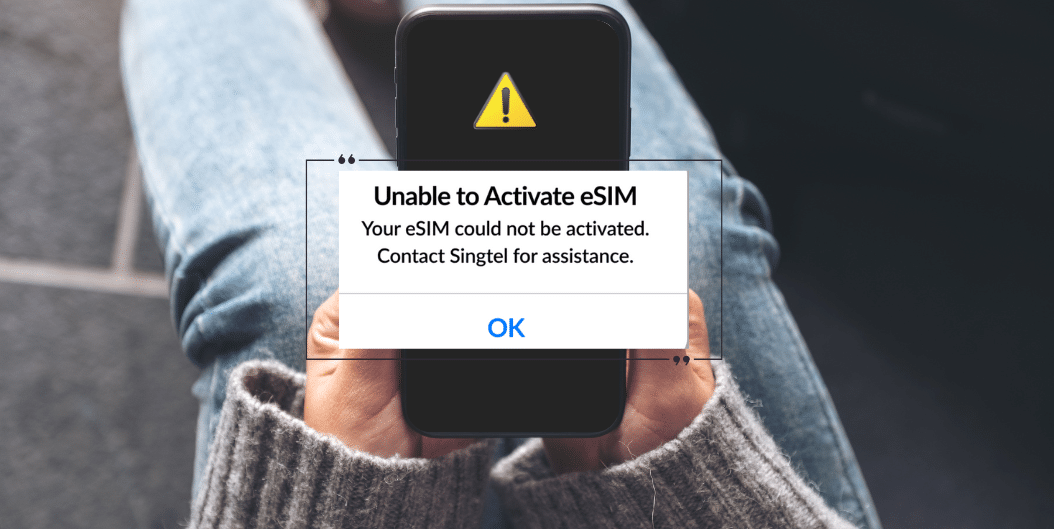
Most Japan eSIM installations go smoothly. You scan the QR code, install the profile, and connect after landing in Japan. Most travelers using Japan Sim Data eSIMs never need troubleshooting.
However, problems can still happen. In many cases, a small settings mistake causes the issue. Knowing the likely cause can save you from unnecessary stress.
This guide covers 12 common Japan eSIM issues. It lists each problem from the most common to the more specific. You will also find practical fixes for each issue.
Most problems involve simple settings. In many cases, you can fix them in less than two minutes.
Problem 1: No Signal After Arrival in Japan
What it looks like: Your phone shows “No Service” or “Searching” after you land in Japan and turn off flight mode.
Fix 1: Toggle flight mode
Turn flight mode on and wait ten seconds. Then turn it off again. This prompts your phone to scan for available networks.
Fix 2: Check the active data SIM
Dual-SIM phones can select the wrong line for mobile data. Your home SIM may still have priority.
On iPhone, go to Settings → Cellular → Cellular Data. Select your Japan eSIM.
On Android, go to Settings → Mobile Network or the equivalent SIM settings. Select the Japan eSIM for mobile data.
Fix 3: Check that the eSIM is enabled
Open your SIM settings and find the Japan eSIM. Make sure the line is switched on.
On iPhone, go to Settings → Cellular and select the Japan eSIM. Confirm that the line remains active.
Fix 4: Try manual network selection
Open Network Selection in your cellular settings. Turn off automatic selection and choose the Japanese carrier linked to your plan.
Depending on your plan, the network may be Docomo, SoftBank, or KDDI.
Problem 2: eSIM Installed but No Data
What it looks like: Your phone shows signal bars, but apps and websites will not load.
This is one of the most common japan esim no data situations. The wrong SIM often handles mobile data.
Select the Japan eSIM for mobile data
On iPhone:
Settings → Cellular → Cellular Data → Japan eSIM
On Samsung:
Settings → Connections → SIM Card Manager → Preferred SIM for Mobile Data → Japan eSIM
On Google Pixel:
Settings → Network & Internet → SIMs → Japan eSIM → Mobile Data
After changing the setting, open a browser and test the connection.
Check data roaming
Some devices require data roaming for travel eSIMs. This can apply even when the eSIM connects to a Japanese network.
On iPhone, open Settings → Cellular → Japan eSIM. Then turn on Data Roaming.
Android users can find the same option under the Japan eSIM’s mobile network settings.
Problem 3: Data Roaming Is Blocking the Connection
What it looks like: Your phone has signal, but mobile data still does not work.
The data roaming setting can affect travel eSIM connections on some devices. Check the setting before trying more advanced fixes.
Enable data roaming for the Japan eSIM
On iPhone:
Settings → Cellular → Japan eSIM → Data Roaming → ON
On Android:
Settings → Mobile Network → Japan eSIM → Data Roaming → ON
The name can vary by Android manufacturer. Look for the roaming option inside the Japan eSIM’s network settings.
After enabling the setting, wait a few seconds. Then test your mobile data again.
Problem 4: APN Settings Are Incorrect
What it looks like: Your phone shows signal, but data still does not work.
Most japan esim apn settings configure automatically during installation. Some Android devices may still require manual APN configuration.
Check the APN on Android
Go to:
Settings → Mobile Network → Japan eSIM → Access Point Names (APN)
Check whether an APN entry appears for your Japanese carrier.
If no entry appears, contact Japan Sim Data support at wordpress-1493298-6069223.cloudwaysapps.com. Ask for the correct APN values for your specific plan.
Japan Sim Data may use Docomo, SoftBank, or KDDI. APN values can differ between networks. Enter the supplied details exactly.
iPhone APN settings
Most iPhone users do not need to enter an APN manually. If you suspect an APN problem on an iPhone, contact Japan Sim Data support for guidance.
Problem 5: The Wrong Carrier Appears
What it looks like: Your phone connects to a Japanese network, but the network does not match your plan.
For example, a Docomo plan may connect to a different network. Manual carrier selection can help in this situation.
Select the correct carrier
Open:
Settings → Cellular or Mobile Network → Network Selection
Turn off automatic selection. Then choose the carrier that matches your plan.
Examples include:
- NTT DOCOMO for a Docomo plan
- SoftBank for a SoftBank plan
- au for a KDDI plan
After the phone connects, you can turn automatic network selection back on. This allows the device to manage the connection during your trip.
Problem 6: The QR Code Will Not Scan
What it looks like: Your phone opens the eSIM scanner, but the QR code does not register.
Fix 1: Increase screen brightness
Set the screen displaying the QR code to high brightness. Keep the scanning phone steady.
Allow the camera to focus before you scan again.
Fix 2: Print the QR code
If the screen scan continues to fail, print the QR code. Use the original size and avoid stretching or cropping it.
A printed QR code can make scanning easier on some devices.
Fix 3: Enter the activation code manually
Japan Sim Data QR codes can also have a manual activation code. Select Enter Code Manually in the eSIM installation settings.
Enter the code exactly as provided.
If you cannot find the code, contact Japan Sim Data at wordpress-1493298-6069223.cloudwaysapps.com.
Problem 7: “eSIM Not Supported” Appears
What it looks like: Your phone displays an error saying that it does not support eSIM.
Two common factors can cause this message.
Check whether your phone is carrier-locked
Some phones remain locked to the original carrier. A locked device may prevent you from installing another carrier’s eSIM.
Contact your home carrier and ask whether the device is unlocked.
Check your device model
Some older phones do not support eSIM. Certain regional versions also have different eSIM capabilities.
Check your exact model on the manufacturer’s website.
What to do next
If your carrier locked the phone, ask the carrier about unlocking it.
If your phone does not support eSIM, contact Japan Sim Data about physical SIM alternatives.
Problem 8: The eSIM Shows “Inactive” or “Disabled”
What it looks like: Your phone lists the Japan eSIM, but the line shows as inactive or disabled.
The profile may have installed correctly. You simply need to enable the line.
Enable the Japan eSIM
On iPhone:
Settings → Cellular → Japan eSIM → ON
On Android:
Settings → SIM Card Manager → Japan eSIM → Enable
Once enabled, give the phone a few seconds to connect to a Japanese network.
Problem 9: “No SIM” Appears After a Restart

What it looks like: Your Japan eSIM worked before a restart. After restarting the phone, the carrier connection disappears.
Fix 1: Check the eSIM profile
Open your cellular or mobile network settings. Find the Japan eSIM and confirm that it remains enabled.
Fix 2: Toggle the eSIM
Turn the Japan eSIM off. Wait ten seconds. Then turn it back on.
Fix 3: Rescan for the network
Open Network Selection. Turn off automatic selection and choose the correct Japanese carrier.
Once the phone connects, turn automatic selection back on.
Check device-specific settings
Some Android phones include settings that affect SIM behavior after a restart. Check your device’s eSIM and SIM management options for relevant settings.
Problem 10: Docomo, SoftBank, or KDDI eSIM Problems
Carrier-specific problems can sometimes look similar. However, the network name can help identify the correct carrier.
docomo esim not working
Docomo usually appears as NTT DOCOMO in manual network selection.
If you use a Docomo plan, select this network when you use manual selection. Some iPhones may also require Data Roaming for the eSIM line.
softbank esim issue
SoftBank may appear as SoftBank during network selection. If the network does not appear, toggle flight mode on and off.
Then run another network scan.
kddi esim problem
KDDI usually appears as au on Japanese network lists. It may not appear as “KDDI.”
If you use a KDDI plan, select au when manual network selection asks you to choose a carrier.
Problem 11: Data Worked but Stopped During the Trip
What it looks like: The eSIM worked normally for several hours or days. Then mobile data suddenly stopped.
Two common causes can explain this change.
Check your remaining data
Fixed-data plans can stop working after you use the full allocation. Check your Japan Sim Data account or your phone’s data usage.
For example, a 10 GB or 15 GB plan can stop once you reach its limit.
Check the plan expiry date
Some plans have a fixed validity period. Common periods include 7, 14, or 30 days.
The connection can stop when the validity period ends. This can happen even if the plan still has unused data.
Contact support if needed
If you used all your data or the plan expired, contact Japan Sim Data at wordpress-1493298-6069223.cloudwaysapps.com. Ask about available renewal or top-up options.
Problem 12: The eSIM Stops Working After an iOS or Android Update
What it looks like: You install a software update and then lose your eSIM connection.
A software update can change network or SIM settings on some devices.
Fix 1: Restart your phone
Restart the device after the update. Then check whether the Japan eSIM reconnects.
Fix 2: Toggle the eSIM
Open your cellular settings. Turn the Japan eSIM off and back on.
Fix 3: Run a network scan
Open Network Selection and choose manual selection. Select the correct Japanese carrier.
After the connection returns, switch back to automatic selection.
Plan major updates carefully
Avoid major phone updates while you depend on your eSIM for navigation or communication.
If you need to update, use accommodation Wi-Fi first. This gives you a reliable connection if the phone needs additional troubleshooting.
When to Contact Japan Sim Data Support
Most basic connectivity problems respond to the steps above. Some situations need additional support.
Contact Japan Sim Data through wordpress-1493298-6069223.cloudwaysapps.com if:
- The eSIM profile disappears from your phone.
- The standard troubleshooting steps do not work.
- Several travelers using the same batch have the same problem.
- Your data usage seems higher than expected.
- Your plan has expired and you need renewal.
- You have used your data allocation and need a top-up.
Give support the right information
Provide your device make and model. Include your iOS or Android version.
Also describe the exact error or symptom. List the troubleshooting steps you already tried.
This information helps the support team understand the problem faster.
According to the GSMA, eSIM connectivity can depend on device configuration and network settings. Checking these settings can therefore help identify common connection problems.
Conclusion: Most Japan eSIM Problems Have Simple Fixes
The japan esim troubleshooting process often starts with basic phone settings. Check the active data SIM first. Then check data roaming, the eSIM line, and network selection.
These steps can resolve many common connection problems. More advanced issues may require APN checks or carrier-specific troubleshooting.
Work through the 12 problems in order. Start with the first five because they cover the most common settings issues.
If the problem continues, contact Japan Sim Data through wordpress-1493298-6069223.cloudwaysapps.com. Provide your device details and explain the steps you have already tried.
Frequently Asked Questions

Q1: My Japan eSIM shows signal but apps won’t load — what’s wrong?
A: This is almost certainly the data SIM selection issue (Problem 2). Your device is connecting to the Japanese network for signal but routing data through your home SIM, which isn’t active in Japan. Go to Settings → Cellular → Cellular Data (iPhone) or Mobile Data (Android) and select the Japan eSIM as the data line.
Q2: Do I need to enable data roaming for a Japan eSIM?
A: Counterintuitively, yes on many devices. Even though you’re using a local Japanese network rather than roaming, some iPhones and Android devices require the “Data Roaming” toggle enabled for the eSIM line. Go to Settings → Cellular → select your Japan eSIM line → enable Data Roaming.
Q3: My Japan eSIM worked fine yesterday but stopped today — why?
A: The most likely causes are data plan exhaustion (for fixed data plans) or plan validity expiry. Check your remaining data in Japan Sim Data account settings. If the plan is exhausted, contact wordpress-1493298-6069223.cloudwaysapps.com for top-up options. If connectivity stopped without data exhaustion, try toggling flight mode twice to force network re-registration.
Q4: Can I reinstall my Japan eSIM if the profile disappears?
A: In most cases, yes — contact Japan Sim Data support at wordpress-1493298-6069223.cloudwaysapps.com with your order details and they can issue a replacement QR code for reinstallation. Note that each QR code can typically only be used for one installation — if you’ve already installed, you’ll need a replacement code for reinstallation after a profile deletion.
Q5: My phone says eSIM is not supported — what are my options?
A: First confirm whether your device is carrier-locked (contact your home carrier to check and potentially unlock). If the device is confirmed eSIM-incompatible, Japan Sim Data offers physical SIM card alternatives that provide equivalent Japanese carrier network access without requiring eSIM capability.