

Japan eSIM APN Settings: How to Fix Data Connection Issues
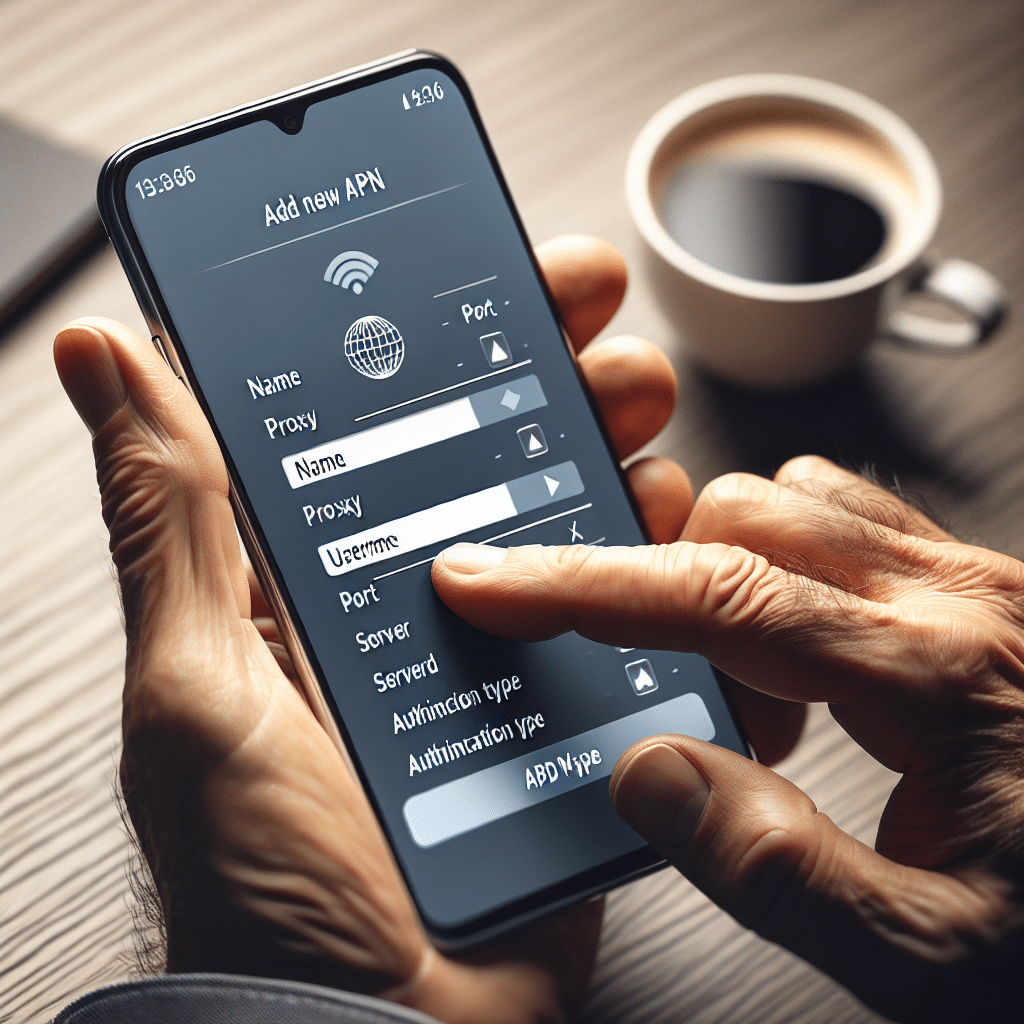
Most Japan eSIM installations configure APN settings automatically. The eSIM profile downloaded during installation includes the carrier configuration your device needs to connect to a Japanese data network. For most travelers, APN settings work quietly in the background and require no attention.
Some travelers still experience data connection issues after standard troubleshooting. They may have selected the correct SIM, enabled data roaming, and toggled flight mode without restoring the connection. In these cases, manual APN configuration can provide the next diagnostic step.
Understanding APNs can help you troubleshoot these issues. You need to know what an APN does, where to find the settings on your device, and which values your Japan Sim Data plan requires.
This guide covers AP settings for Japan Sim Data eSIM plans that use Docomo, SoftBank, and KDDI networks. It includes step-by-step instructions for iPhone and Android devices. You will also learn about common APN mistakes and when to contact Japan Sim Data support.
What an APN Is and Why It Matters

The Access Point Name Explained
APN stands for Access Point Name — the configuration string that tells your device which network gateway to use when connecting to the mobile carrier’s data network. Think of it as the address that your phone sends data requests to when it wants to connect to the internet through a mobile carrier’s infrastructure.
When you install an eSIM profile, the APN configuration is typically embedded in the profile and applied automatically. The APN tells your device which of the carrier’s data services to use — general internet access, multimedia messaging (MMS), or specific carrier services — and provides the authentication credentials if any are required.
Why APN issues occur with eSIM:
On some Android devices, particularly certain Samsung, Xiaomi, and Huawei models, APN settings don’t always carry over correctly from the eSIM profile. The profile installs successfully, the device registers on the network, signal appears — but without the correct APN, the device doesn’t know where to route data requests and the internet doesn’t work.
On iPhones, APN settings are more deeply embedded in carrier profiles and less frequently need manual adjustment — but some scenarios, particularly after iOS updates or on older iPhone models, can cause APN settings to reset or corrupt.
APN Settings for Japan Sim Data Plans
Important Note on APN Values
japan esim apn settings values are specific to each carrier and are provided by Japan Sim Data with your eSIM plan. The values below represent the standard APN configurations for each carrier’s tourist eSIM data services — confirm the exact values against your Japan Sim Data documentation, as specific plan configurations may use different APN values.
Contact Japan Sim Data at wordpress-1493298-6069223.cloudwaysapps.com if you need to confirm the exact APN values for your specific plan before attempting manual configuration.
Docomo APN Configuration
For Japan Sim Data plans on the NTT Docomo network:
APN: (provided in your Japan Sim Data plan documentation)
Username: (provided in your Japan Sim Data plan documentation, may be blank)
Password: (provided in your Japan Sim Data plan documentation, may be blank)
Authentication type: PAP or CHAP (typically PAP for Docomo tourist plans)
APN Type: default,supl (for data connectivity)
MCC: 440
MNC: 10 (NTT Docomo’s network identifier)
The MCC (Mobile Country Code) 440 identifies Japan as the country. The MNC (Mobile Network Code) 10 identifies NTT Docomo specifically. These values are fixed and don’t require confirmation against plan documentation.
SoftBank APN Configuration
For Japan Sim Data plans on the SoftBank network:
APN: (provided in your Japan Sim Data plan documentation)
Username: (provided in your Japan Sim Data plan documentation, may be blank)
Password: (provided in your Japan Sim Data plan documentation, may be blank)
Authentication type: PAP or CHAP
APN Type: default,supl
MCC: 440
MNC: 20 (SoftBank’s network identifier)
KDDI/au APN Configuration
For Japan Sim Data plans on the KDDI/au network:
APN: (provided in your Japan Sim Data plan documentation)
Username: (provided in your Japan Sim Data plan documentation, may be blank)
Password: (provided in your Japan Sim Data plan documentation, may be blank)
Authentication type: PAP or CHAP
APN Type: default,supl
MCC: 440
MNC: 50 (KDDI/au’s network identifier)
Where to Enter APN Settings on iPhone
iPhone APN Configuration
japan esim iphone apn configuration is less commonly needed than Android APN configuration, because iOS manages APN settings through carrier profiles that are automatically applied with the eSIM. However, when manual APN adjustment is required, the path differs between iPhone and Android.
iPhone APN Access Path:
- Open Settings
- Tap Cellular (or Mobile Service on some regional iOS versions)
- Tap the Japan eSIM line (not your home SIM line — ensure you’re editing the correct line)
- Tap Cellular Data Network (this option appears only on unlocked iPhones and may not be visible on carrier-locked devices)
- Under Cellular Data, enter the APN value in the APN field
- Enter Username and Password if provided (leave blank if not)
- Under LTE Setup (Optional), enter the same APN value if the field is present
- Press the back button — settings save automatically on iOS (no separate save button)
If the “Cellular Data Network” option doesn’t appear:
This is common on iPhones that were purchased through a carrier rather than unlocked — the carrier may have locked APN editing. Options:
- Install a carrier settings update: Settings → General → About → if a carrier settings update is available, install it (this sometimes unlocks APN access)
- Contact Japan Sim Data support — they may be able to provide a configuration profile that sets the APN without requiring manual entry
- Contact your home carrier to unlock the device for international APN editing
Resetting iPhone APN to Automatic
After manual APN entry resolves the connection issue, iPhone users can typically leave the APN field as-is — iOS doesn’t reset these automatically unless you restore the device or install a new carrier profile that overwrites the settings.
Where to Enter APN Settings on Android
Samsung Galaxy APN Configuration
japan esim android apn configuration varies by manufacturer. Samsung Galaxy is the most common Android device type requiring manual APN adjustment.
Samsung Galaxy (One UI) Path:
- Open Settings
- Tap Connections
- Tap Mobile Networks
- Tap Access Point Names (APN)
- Tap the + icon (top right) to add a new APN or tap an existing Japan entry to edit
- Enter the following fields:
- Name: Japan Sim Data (or any descriptive name you choose)
- APN: (value from your Japan Sim Data documentation)
- Username: (value from documentation, or leave blank)
- Password: (value from documentation, or leave blank)
- Authentication Type: PAP
- APN Type: default,supl
- MCC: 440
- MNC: 10 (Docomo), 20 (SoftBank), or 50 (KDDI)
- Tap the menu icon (three dots, top right) → Save
- Select the newly created APN entry to make it active (radio button)
Note on Samsung SIM switching: Ensure you’re editing APN settings for the Japan eSIM line, not your home SIM. In Samsung’s SIM Card Manager, confirm which slot contains the Japan eSIM and access its APN settings specifically.
Google Pixel APN Configuration
Google Pixel Path:
- Open Settings
- Tap Network & Internet
- Tap SIMs
- Select the Japan eSIM line
- Tap Access Point Names
- Tap + to add a new APN
- Enter fields as per Samsung instructions above
- Tap the menu icon → Save
- Select the new APN entry
Other Android Devices
The APN settings path on Android varies by manufacturer but follows the general pattern: Settings → Network/Mobile → SIM selection → APN settings. Search your specific device model and Android version for the exact menu path if it differs from the Samsung and Pixel paths above.
Common APN Mistakes and Fixes

Mistake 1: Editing the Home SIM’s APN Instead of the eSIM
On dual-SIM devices, the APN settings for the home SIM and the eSIM are separate. Editing the home SIM’s APN has no effect on the Japan eSIM’s data connection. Always confirm you are in the APN settings for the Japan eSIM line specifically before making changes.
Fix: In your device’s SIM settings, identify which line is the Japan eSIM and access APN through that line’s specific settings rather than through general APN access.
Mistake 2: Incorrect APN String Entry
APN strings are case-sensitive and must be entered exactly. A single incorrect character — an extra space, a capital letter where lowercase is required, a period in the wrong position — prevents the APN from functioning.
Fix: If your Japan Sim Data documentation provides the APN in text format, copy and paste it if possible rather than typing manually. If your device’s APN entry field doesn’t accept paste, type slowly and verify each character.
Mistake 3: Wrong Authentication Type Selected
APN configurations typically require either PAP (Password Authentication Protocol) or CHAP (Challenge Handshake Authentication Protocol). Selecting the wrong type can prevent connection even with a correct APN string.
Fix: Try PAP first (it’s the most common for Japan tourist eSIM plans). If PAP doesn’t work, try CHAP. If your Japan Sim Data documentation specifies the authentication type, use the specified value.
Mistake 4: Not Selecting the New APN Entry as Active
On Android, adding a new APN entry doesn’t automatically make it active — you must select the radio button next to the new entry to activate it.
Fix: After saving the new APN entry, tap the radio button next to it to select it as the active APN for the Japan eSIM line.
Mistake 5: APN Type Field Incorrect
The APN Type field specifies what types of data traffic the APN handles. “default,supl” covers standard internet data access. If this field is left blank or set incorrectly, data routing may fail even with a correct APN string.
Fix: Enter “default,supl” in the APN Type field. If your Japan Sim Data documentation specifies a different value, use the specified value.
When APN Isn’t the Problem: Other Causes of Japan eSIM Data Failure
Before spending time on APN configuration, confirm that simpler issues have been excluded:
- Correct SIM selected for data: Settings → Cellular Data (iPhone) or Mobile Data (Android) → Japan eSIM must be selected
- Data Roaming enabled for eSIM line: Settings → Japan eSIM line → Data Roaming → ON
- Signal present: Carrier name showing in status bar
- Plan active: Data allowance not exhausted, plan not expired
japan esim technical issues that persist after APN configuration suggest either a device compatibility issue (requiring Japan Sim Data support) or a network-level issue (also requiring Japan Sim Data support with carrier system access).
When to Contact Japan Sim Data Support
Contact Japan Sim Data at wordpress-1493298-6069223.cloudwaysapps.com when:
- You cannot find the APN settings interface on your specific device
- Manual APN entry doesn’t resolve the connection issue after correct configuration
- Your device’s APN editing is locked and carrier profile installation is needed
- You need confirmation of the exact APN values for your specific plan
- The connection issue appears to be at the network level rather than device settings
Japan Sim Data’s support team has direct carrier relationships that allow investigation beyond device-level troubleshooting — network activation status, plan validity verification, and carrier-side configuration issues that device settings cannot resolve.
According to the GSMA, APN configuration issues account for a significant proportion of travel eSIM data connection failures on Android devices globally, with automatic APN provisioning through eSIM profiles having improved but not eliminated the need for occasional manual configuration on specific device models.
Conclusion: APN Configuration Is Manageable With the Right Information
The japan esim apn settings process sounds technical but is practically straightforward when you have the correct values and the right steps for your device. The most important elements: confirm you’re editing the correct SIM line’s APN (the Japan eSIM, not the home SIM), enter the APN string exactly as provided, set authentication type to PAP, and select the new entry as active.
For the majority of Japan Sim Data eSIM users, APN configuration is never needed — the automatic provisioning handles it invisibly. For the minority who do encounter data connection issues that require manual APN work, this guide provides the framework, and Japan Sim Data’s support team provides the specific values and additional assistance that the framework enables.
Visit wordpress-1493298-6069223.cloudwaysapps.com for your plan-specific APN values and direct technical support.
Frequently Asked Questions

Q1: Where do I find the correct APN settings for my Japan Sim Data plan?
A: Your plan-specific APN settings are provided in your Japan Sim Data order documentation and are available from Japan Sim Data support at wordpress-1493298-6069223.cloudwaysapps.com. APN values are specific to each carrier (Docomo, SoftBank, KDDI) and should be confirmed against your plan documentation before manual entry.
Q2: Do iPhones need manual APN configuration for Japan eSIMs?
A: Rarely. iPhones typically receive APN configuration automatically through the eSIM carrier profile. Manual APN access is available on unlocked iPhones through Settings → Cellular → [Japan eSIM line] → Cellular Data Network. If this option doesn’t appear, your iPhone may be carrier-locked for APN editing — contact Japan Sim Data support for a configuration profile alternative.
Q3: I entered the APN correctly but data still doesn’t work. What next?
A: Confirm all other settings: the Japan eSIM is selected as the active data SIM, Data Roaming is enabled for the eSIM line, and the new APN entry is selected (radio button active). If all settings are correct and data doesn’t work, contact Japan Sim Data support — the issue may be at the network level rather than device configuration level.
Q4: Will manual APN settings I enter be overwritten by a carrier update?
A: On some devices, installing a carrier settings update can overwrite manual APN entries. If data connectivity stops working after an automatic carrier update, re-enter the APN settings following the same steps. Keeping a note of the correct APN values prevents having to contact support for them again.
Q5: Is the APN setting the same for all Japan Sim Data plans on the same carrier?
A: Generally yes — APN settings are carrier-specific (Docomo, SoftBank, or KDDI) rather than plan-specific within a carrier. However, some specialized plan configurations may use different APNs. Always confirm against your specific plan documentation or Japan Sim Data support rather than assuming the values from a generic source are correct for your plan.