
How to Install an eSIM on Your iPhone for Japan: Complete 2026 Guide
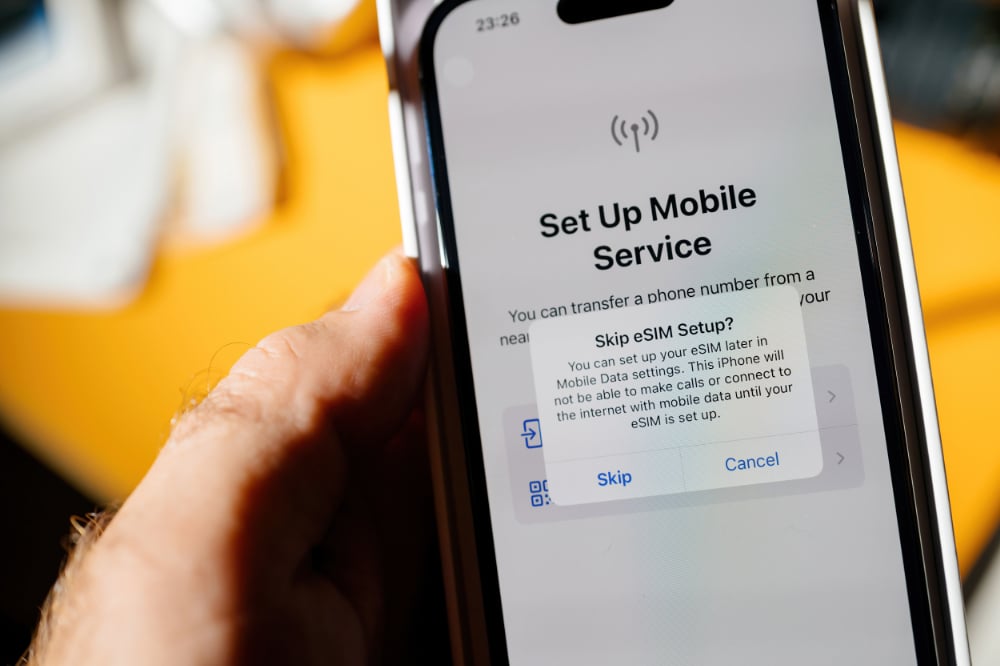
Planning a trip to Japan and wondering how to stay connected from the moment you land at Narita or Kansai International? Good news: if you’re an iPhone user, getting online in Japan has never been simpler. Thanks to eSIM technology built directly into modern iPhones, you can install eSIM iPhone Japan before you even pack your bag — no physical SIM card, no airport kiosks, no fumbling with tiny trays on a jet-lagged brain.
This guide walks you through everything you need to know for your japan esim iphone setup — from checking device compatibility to scanning a QR code, entering details manually, and configuring iOS so your home number stays reachable while Japan mobile data flows seamlessly. Whether you’re a first-time iphone japan tourist heading to Tokyo or a frequent traveler planning another Kyoto excursion, this japan iphone esim guide has you covered.
Which iPhone Models Support eSIM for Japan

Before anything else, confirm your iPhone supports eSIM. The good news is that most iPhones sold in the last several years do — with one important caveat for travelers.
eSIM-compatible iPhone models:
- iPhone XS, XS Max, XR (2018) and all later models
- iPhone SE (2nd and 3rd generation)
- iPhone 11, 12, 13, 14, 15, 16 series (all variants)
iPhone 14 and later (US models): Apple removed the physical SIM tray entirely on US-market iPhone 14 and newer, making these eSIM-only devices. They work perfectly for iphone japan esim setup.
China/Hong Kong variants: Some iPhones sold in mainland China and Hong Kong use a dual physical SIM configuration and do not support eSIM. If your device was purchased in either region, check Settings → General → About and look for “eSIM” under available options before purchasing a plan.
For Japan specifically, any eSIM-compatible iPhone will work on the three major Japanese networks — NTT Docomo, SoftBank, and KDDI/au — as long as your device is unlocked. Check with your home carrier if you’re unsure whether your phone is SIM-unlocked for international use.
Pre-Installation Checklist
A smooth iphone esim japan activation starts with a few minutes of preparation. Run through this before you install anything.
Device checks:
- ☐ iPhone model supports eSIM (see section above)
- ☐ iPhone is carrier-unlocked (contact your home carrier if unsure)
- ☐ iOS is updated to the latest version (Settings → General → Software Update)
- ☐ No more than 8 eSIM profiles already stored on device
Account and connection checks:
- ☐ Stable Wi-Fi connection available for installation
- ☐ Japan Sim Data confirmation email received with QR code or activation details
- ☐ Apple ID signed in (Settings → [your name])
Timing tip: Install your Japan eSIM 1–3 days before departure — not at the airport gate. You want calm surroundings and reliable Wi-Fi so you can troubleshoot any issues from home before your iphone japan trip preparation is complete.
Installing Your Japan eSIM via QR Code on iPhone
The QR code method is the fastest route to completing your japan esim ios setup. Here’s the step-by-step process.
Step 1 — Open Cellular Settings
Go to Settings → Cellular (or Settings → Mobile Data on some iOS versions). Tap Add eSIM or Add Cellular Plan.
Step 2 — Choose “Use QR Code”
iOS will present options. Select Use QR Code. Your iPhone camera will activate automatically.
Step 3 — Scan the QR Code
Hold your iPhone camera over the japan esim iphone qr code provided in your Japan Sim Data confirmation email. Keep it steady — iOS typically recognizes the code within 2–3 seconds. If you’re trying to scan a code displayed on the same device, forward the email to another device or print it out first.
Step 4 — Confirm Plan Details
iOS will display the carrier name and plan details. Review them and tap Continue, then Add Cellular Plan to confirm.
Step 5 — Label Your New Line
Choose a clear label like “Japan Data” or “JSD” so you can identify it easily throughout your trip. This label appears in your Control Center and Cellular menu.
Step 6 — Set Default Line Behavior
iOS will then ask which line to use for Default Voice Line, iMessage & FaceTime, and Cellular Data. See Sections 6 and 7 for how to configure these correctly.
Your japan iphone esim activation via QR code is now complete. The profile is stored on your device and ready to activate when you land in Japan.
Installing Your Japan eSIM Manually (Without QR Code)
If your QR code isn’t scanning, or you need to install from the same device displaying the code, the manual method is just as reliable. This is your japan esim iphone manual setup option.
Step 1 — Access Manual Entry Screen
Go to Settings → Cellular → Add eSIM → Use QR Code. At the bottom of the QR camera screen, tap Enter Details Manually.
Step 2 — Enter SM-DP+ Address and Activation Code
Your Japan Sim Data confirmation will include:
- SM-DP+ Address (activation server address)
- Activation Code
- Confirmation Code (if applicable)
Type these carefully — they are case-sensitive. Most SM-DP+ addresses begin with smdp. followed by the provider’s domain.
Step 3 — Complete the Installation
Tap Next after entering the details. iOS will connect to the activation server, download the eSIM profile, and finish the japan iphone esim install process — typically under 60 seconds on stable Wi-Fi.
Troubleshooting: If you see an error, double-check for typos — a misplaced character is the most common cause of manual activation failures. Contact Japan Sim Data’s support team if the error persists.
Setting Your Japan eSIM as the Data Line

Once installed, you need to tell your iPhone to use the Japan eSIM for cellular data. This is where most first-time iphone japan visitor users get tripped up, so read carefully.
On iOS 16 and Later
Go to Settings → Cellular → Cellular Data and select your Japan line. Toggle off “Allow Cellular Data Switching” unless you specifically want iOS to fall back to your home plan automatically.
On Older iOS Versions
Go to Settings → Cellular → Cellular Data and choose your Japan eSIM line from the selector at the top.
Important: If you skip this step, your iPhone may continue routing iphone japan data through your home carrier’s roaming plan — potentially at high cost. Always verify the Japan line is selected before you land. You’ll see the Japanese carrier name appear in your status bar once you’re in range.
Japan Sim Data offers eSIM plans running on all three major Japanese networks — NTT Docomo, SoftBank, and KDDI/au — so iphone japan mobile data coverage is strong whether you’re in central Tokyo, rural Hokkaido, or the narrow lanes of Kyoto’s Gion district.
Keeping Your Home Line for Calls and Texts
One of the biggest advantages of the japan esim iphone dual sim configuration is keeping your home number active for calls and SMS while Japan internet data flows through the eSIM.
Voice Calls
Go to Settings → Cellular → Default Voice Line and keep it set to your primary (home) SIM. This means incoming calls to your home number still ring through — useful for banking apps, two-factor authentication texts, or family check-ins.
For everyday calls, most iphone japan tourist travelers use WhatsApp, FaceTime Audio, or Line (hugely popular in Japan) over the Japan data connection to avoid home carrier roaming charges.
iMessage and FaceTime
Go to Settings → Cellular → iMessage & FaceTime and set it to your home line. This keeps your Apple ID and phone number linked for iMessage without consuming your Japan data plan for delivery.
SMS Texts
Your home line will still receive SMS messages. Replies route through your home carrier, so standard international SMS rates apply. Most travelers use messaging apps over Wi-Fi or data for day-to-day communication instead.
iOS Settings to Check Before Flying to Japan
A few final tweaks will make sure your connection works flawlessly from the moment your flight touches down.
Enable Data Roaming on the Japan Line
Go to Settings → Cellular → [Your Japan line] → Data Roaming and make sure it is on. iOS sometimes requires this toggle enabled for eSIM data lines to activate — without it, you may land in Japan and find iphone japan internet isn’t working despite the eSIM being installed.
Disable Data Roaming on Your Home Line
Go to your home line settings and turn Data Roaming off. This prevents accidental data usage through your home carrier while abroad.
Turn Off Wi-Fi Calling (Optional)
Settings → Phone → Wi-Fi Calling — disable this on your Japan trip if you don’t need it, to prevent unexpected call routing.
Verify APN Settings
Most Japan eSIM providers, including Japan Sim Data, configure APN settings automatically when you install the profile. If data isn’t working after landing, check Settings → Cellular → [Japan line] → Cellular Data Network and verify the APN matches your confirmation email.
Enable Low Data Mode (Optional)
If you’re on a capped plan, enable Low Data Mode under Settings → Cellular → [Japan line] to reduce background data usage and stretch your japan iphone tourist sim allowance further.
Update iOS Before Departure
Apple periodically releases updates that improve eSIM compatibility and carrier support. Traveling on an outdated iOS version can cause iphone esim japan activation issues. Update before departure, not at 30,000 feet.
According to the Japan Tourism Agency, Japan welcomed a record number of international visitors in recent years, with smartphone connectivity cited as a top priority for inbound tourists. Having reliable iphone japan data isn’t a luxury — it’s how you navigate train systems, translate menus, book restaurants on Tabelog, and share moments in real time.
For groups and travel agencies organizing Japan trips, Japan Sim Data’s bulk eSIM plans offer discounted group rates so every iphone japan visitor in your party arrives connected — without the logistical headache of distributing physical SIM cards.
Conclusion
Installing an eSIM on your iPhone for Japan is genuinely one of the easiest parts of planning a Japan trip — and one of the most worthwhile. In under ten minutes, you can have a fully active Japan data plan stored on your device, ready to connect the moment your flight touches down.
To recap: confirm your iPhone model supports eSIM and is carrier-unlocked, run through the pre-installation checklist, install via QR code or manual entry, set your Japan line as the active data line, keep your home SIM live for calls and texts, and make those final iOS tweaks before you leave. That’s everything for a seamless japan esim iphone 2026 setup.
Whether you’re spending two days in Tokyo or three weeks island-hopping through Okinawa, staying connected on a fast, reliable Japanese network makes every part of the journey smoother. Explore Japan Sim Data’s Day Pass, Plan, and Unlimited eSIM options — all running on Japan’s top three networks — and activate yours before your next iphone japan travel adventure.
Frequently Asked Questions

Q1: Can I install my Japan eSIM before I leave for Japan? A: Yes — and it’s strongly recommended. You can install and store the eSIM on your iPhone days before departure. The plan typically activates automatically when your iPhone connects to a Japanese network upon arrival. Installing early gives you time to troubleshoot any issues from home during your iphone japan trip preparation.
Q2: What if my iPhone won’t scan the QR code? A: If the camera isn’t reading the QR code, try increasing screen brightness on the device displaying the code, moving to better lighting, or printing the code on paper. Alternatively, use the manual entry method with the SM-DP+ address and activation code from your confirmation email.
Q3: Will my Japan eSIM work on Docomo, SoftBank, and au networks? A: Japan Sim Data sells eSIMs across all three major Japanese networks — NTT Docomo, SoftBank, and KDDI/au — so coverage depends on which plan you choose. All three offer excellent 4G LTE and 5G coverage across Japan’s major cities and most tourist destinations.
Q4: Can I use my iPhone’s regular number for calls while using the Japan eSIM for data? A: Yes. The japan esim iphone dual sim feature lets you keep your home SIM active for calls and texts while routing all data through your Japan eSIM. Set your Default Voice Line to your home SIM and Cellular Data to your Japan line in Settings → Cellular.
Q5: How many eSIMs can I store on my iPhone? A: iPhones running iOS 16 or later can store up to 8 eSIM profiles, with 2 active simultaneously. This means you can keep your japan esim iphone stored even after your trip and reactivate it for future visits without reinstalling.