
Foldable Phone Japan eSIM: Complete Setup Guide for Z Fold, Z Flip, and Pixel Fold
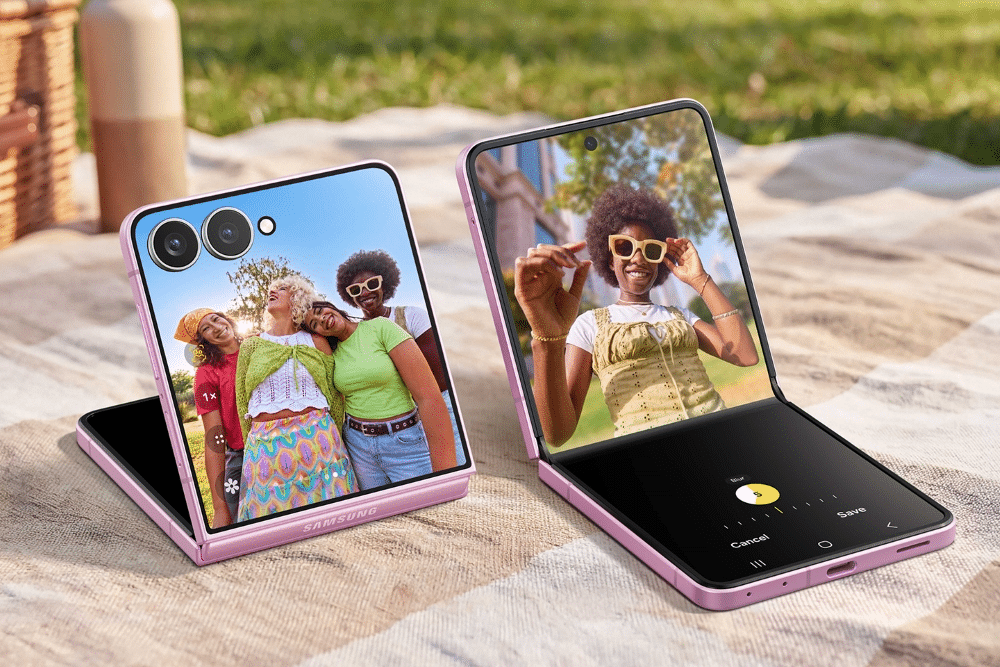
Foldable phones have become popular Japan travel devices. The Galaxy Z Fold turns Shinkansen journeys into productive work sessions. Its large display also makes Tokyo’s complex train maps easier to read.
The Z Flip has a compact closed form. It fits easily into a jacket pocket during temple visits. When needed, it opens into a larger display.
The Pixel Fold offers Google’s clean eSIM management on a large screen. As foldable phones become more common, travelers need to understand their eSIM options before arriving in Japan.
Foldable phone Japan eSIM setup follows the same basic process as other Android devices. However, foldable hardware introduces a few extra considerations. One UI also adds foldable-specific settings on Samsung devices.
This guide covers eSIM support by model, installation steps, dual-SIM settings, Japan travel tips, and battery management.
Whether you carry a Z Fold7, Z Flip6, Pixel 9 Pro Fold, or an older model, these steps can help you prepare your Japan eSIM before departure.
Foldable Models With eSIM Support
Before installation, confirm that your exact foldable model supports eSIM. Regional differences can affect compatibility.
The following models are relevant to Japan travel in 2026.
Samsung Galaxy Z Fold Series
| Model | Year | eSIM Support | 5G Japan |
|---|---|---|---|
| Galaxy Z Fold2 | 2020 | Yes, international | Limited |
| Galaxy Z Fold3 | 2021 | Yes, international | Yes |
| Galaxy Z Fold4 | 2022 | Yes, international | Yes |
| Galaxy Z Fold5 | 2023 | Yes, international | Yes |
| Galaxy Z Fold6 | 2024 | Yes, international | Yes |
| Galaxy Z Fold7 | 2025 | Yes, international | Yes |
Samsung Galaxy Z Flip Series
| Model | Year | eSIM Support | 5G Japan |
|---|---|---|---|
| Galaxy Z Flip | 2020 | Select markets only | No |
| Galaxy Z Flip3 | 2021 | Yes, international | Yes |
| Galaxy Z Flip4 | 2022 | Yes, international | Yes |
| Galaxy Z Flip5 | 2023 | Yes, international | Yes |
| Galaxy Z Flip6 | 2024 | Yes, international | Yes |
| Galaxy Z Flip7 | 2025 | Yes, international | Yes |
Google Pixel Fold Series
| Model | Year | eSIM Support | 5G Japan |
|---|---|---|---|
| Pixel Fold | 2023 | Yes | Yes |
| Pixel 9 Pro Fold | 2024 | Yes | Yes |
Check the Regional Variant
Regional compatibility is especially important for Samsung foldables.
According to the source guide, Korean-market Z Fold and Z Flip variants with KOO, SKC, KTC, or LUC suffixes do not support eSIM.
Therefore, check the model number before buying a Japan eSIM. Go to Settings → About Phone → Model Information and confirm your device variant.
Setting Up a Japan eSIM on Galaxy Z Fold
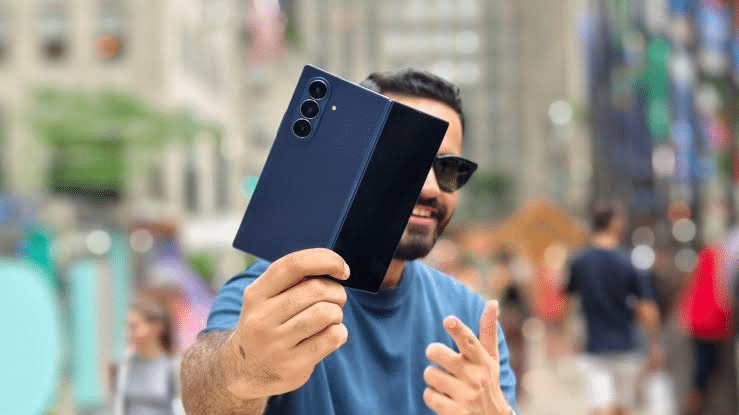
The Samsung Z Fold Japan eSIM setup uses Samsung’s One UI interface. The navigation is similar across the Z Fold3 through Z Fold7.
Prerequisites
Before installation, make sure you have:
- An international-market Z Fold
- A fully unlocked device
- One UI 3.1 or later
- A stable WiFi connection
- Your Japan eSIM QR code on a second device
Step-by-Step Installation
- Open Settings on your Z Fold.
- Go to Connections → SIM Card Manager.
- Tap Add Mobile Plan or Add eSIM.
- Select Scan QR Code from Service Provider.
- Display your Japan Sim Data QR code on another device.
- Scan the QR code with your Z Fold.
- Follow the on-screen installation prompts.
- Name the eSIM line, such as Japan Sim Data.
- Select the Japan eSIM as the preferred Mobile Data line.
- Tap Done.
Installation normally takes only a few minutes.
Using Flex Mode for QR Scanning
The Z Fold’s Flex Mode can make QR scanning easier.
You can place the phone at an angle while holding the QR code on another device. This setup can be more comfortable than holding both devices flat.
Check the Data Preference
After installation, check the SIM Card Manager again.
Go to Settings → Connections → SIM Card Manager → Data. Confirm that the Japan eSIM is selected for mobile data.
This step matters when you keep your home SIM active. Otherwise, your phone may continue using the home SIM for data.
APN Settings on Z Fold
Most Japan Sim Data profiles should configure APN settings automatically on supported One UI versions.
If data does not work after installation, check:
Settings → Connections → Mobile Networks → Access Point Names
Then enter the APN details provided in your confirmation email.
Some KDDI/au-based plans may require manual APN configuration on Samsung devices.
Setting Up a Japan eSIM on Galaxy Z Flip
The Samsung Z Flip Japan eSIM setup follows a similar process.
The main difference is the phone’s compact design.
Installation Steps
- Open the Z Flip.
- Go to Settings → Connections → SIM Card Manager.
- Tap Add Mobile Plan.
- Select Scan QR Code.
- Display your Japan eSIM QR code on a second device.
- Scan the code.
- Confirm the plan details.
- Name the eSIM line.
- Select the Japan eSIM as your mobile data line.
- Complete the installation.
Using the Z Flip Cover Screen
The cover screen is useful after installation.
You can check signal strength and network information without opening the phone. This is convenient when moving through Tokyo subway stations or Osaka Metro stations.
The Z Flip’s compact design also makes it easy to carry. It fits into small bags and pockets during sightseeing.
For travelers who value portability, the Z Flip can be convenient for Japan’s busy urban environments.
Setting Up a Japan eSIM on Pixel Fold
The Google Pixel Fold Japan eSIM setup uses Google’s standard Android eSIM interface.
Pixel Fold Installation
- Open Settings.
- Select Network & Internet → SIMs.
- Tap Add SIM or the + icon.
- Select Download a SIM instead.
- Choose Scan QR Code.
- Display your Japan eSIM QR code on another device.
- Scan the code.
- Review and confirm the plan.
- Label the new line, such as Japan Data.
- Select the Japan eSIM for mobile data.
The installation should complete within a few minutes.
Pixel 9 Pro Fold Features
The Pixel 9 Pro Fold provides a large display for navigation and travel apps.
Google Maps is particularly useful on the larger screen. Station layouts, train routes, and walking directions are easier to view.
The device also provides Google’s standard eSIM management interface. This can make switching between stored eSIM profiles easier for frequent travelers.
Dual SIM on Foldables in Japan
Foldable phones can be useful for travelers who want to keep their home SIM active.
A common setup uses the physical SIM for the home number and the eSIM for Japan data.
Recommended Dual-SIM Setup
Physical SIM: Keep your home-country SIM active for calls, SMS, and services linked to your home number.
Japan eSIM: Use the Japan Sim Data eSIM for mobile data while in Japan.
This setup can help you receive important messages on your home number. At the same time, maps, translation apps, email, and other services can use the Japan eSIM.
Select the Correct Data SIM
The most common dual-SIM problem is incorrect data selection.
On Samsung devices:
Settings → Connections → SIM Card Manager → Mobile Data → Japan eSIM
On Pixel devices:
Settings → Network & Internet → SIMs → Japan eSIM
Confirm the Japan eSIM is selected for mobile data.
Check this setting after installation. It is also worth checking after restarting an older device.
Check Data Roaming
Some eSIM plans may require data roaming to be enabled.
On Samsung:
Settings → Connections → SIM Card Manager → Japan eSIM → Roaming
On Pixel:
Settings → Network & Internet → SIMs → Japan eSIM → Roaming
Follow the activation instructions supplied with your specific Japan Sim Data plan.
Foldable-Specific Tips for Japan Travel
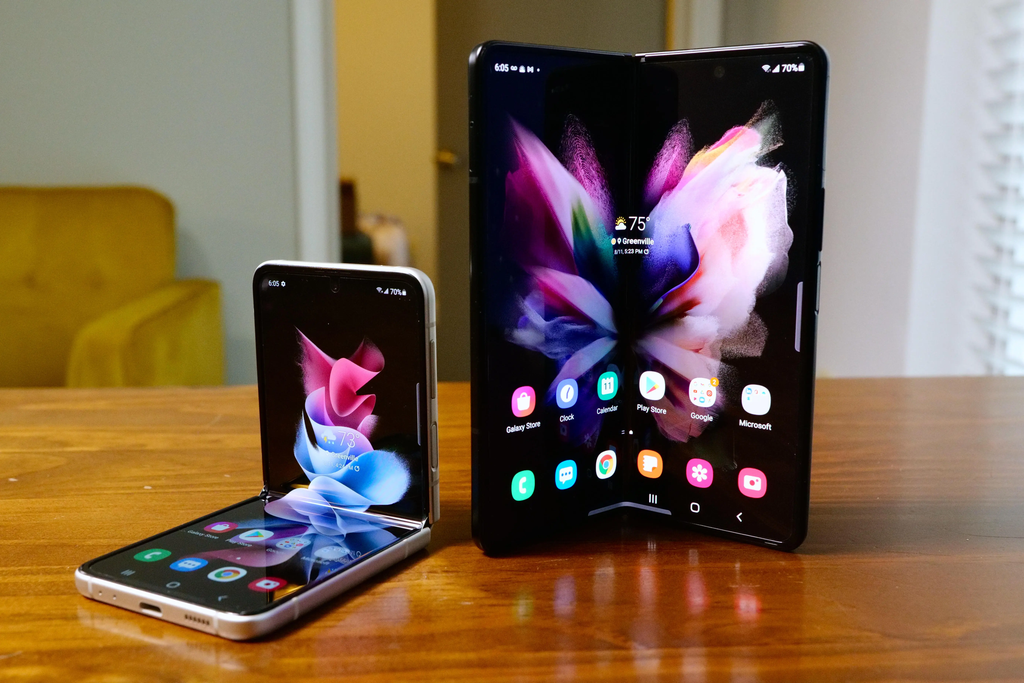
Foldable phones offer several useful features for Japan travel.
However, their larger displays and different form factors also require some practical adjustments.
Navigation in Japan
The Z Fold and Pixel Fold provide large displays for Google Maps.
This can help when navigating complex stations such as Shinjuku, Shibuya, and Osaka Umeda.
The larger screen also makes train routes easier to view.
For walking tours, the Z Flip can be more convenient. Its compact design allows quick one-handed use.
Translation
The large screen on a foldable can help with camera translation.
You can use Google Translate to scan Japanese menus, signs, and product labels. The larger display makes small text easier to position within the camera view.
This can be especially useful in restaurants and shops.
Using Foldables in Public
Japan has relatively restrained public-phone etiquette. Crowded trains are not ideal places for extended large-screen use.
For example, using the Z Flip while closed or the Z Fold on its cover screen can be more discreet.
Opening the larger screen is more practical when seated on a Shinkansen or when standing in a less crowded area.
These are cultural considerations rather than strict rules. Still, being aware of local habits can make your trip more comfortable.
The Japan National Tourism Organization provides additional travel information for international visitors.
For eSIM standards, GSMA’s eSIM consumer documentation explains the technology used for consumer eSIM profile delivery.
Battery Considerations for Foldables in Japan
Battery management deserves extra attention on foldable devices.
Full-day sightseeing can place heavy demands on any smartphone. Foldables can require even more power because of their larger displays.
Why Foldables Can Drain Faster
Several factors affect battery use:
- Two displays can consume more power.
- The main screen is larger than a standard phone display.
- Additional hardware and sensors use some power.
- 5G can consume more energy than 4G LTE.
Real-World Battery Expectations
For a typical full day of navigation, translation, photography, and messaging, the source estimates:
- Z Fold7: 6–8 hours of active use
- Z Flip7: 7–9 hours with mostly cover-screen use
- Pixel 9 Pro Fold: 6–8 hours of mixed use
Actual battery life varies with brightness, signal strength, app use, and network settings.
Carry a Power Bank
A 20,000 mAh USB-C power bank can provide useful backup power during long travel days.
Japan’s convenience stores also commonly sell charging cables and other mobile accessories.
Manage Screen Brightness
Outdoor sightseeing can require high brightness.
Use adaptive brightness when possible. Lower the brightness in shaded or indoor locations to reduce battery use.
Use the Cover Screen
On Z Fold and Z Flip devices, use the cover screen for quick tasks.
Check notifications, maps, or travel information without opening the main display. This can reduce power consumption.
Switch to LTE When Necessary
If your battery is critically low, switching from 5G to LTE can reduce radio power use.
Go to Settings → Connections → Mobile Networks → Network Mode on Samsung devices.
For normal travel activities, LTE is usually sufficient for maps, messaging, browsing, and translation.
Conclusion
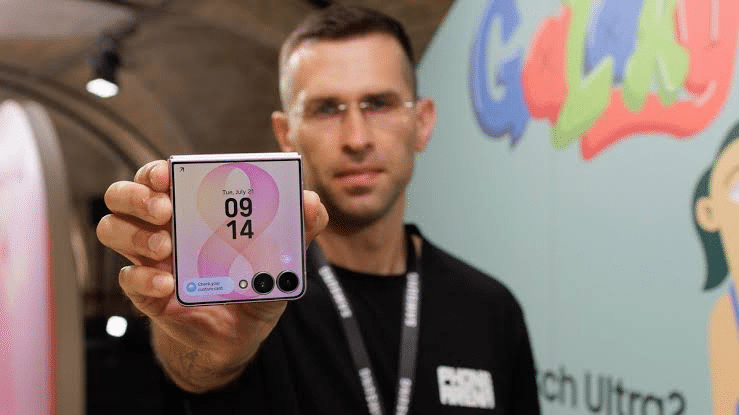
Foldable phones can work well as Japan travel devices when properly prepared.
The basic eSIM setup is similar to other Android phones. However, regional model differences, dual-SIM settings, and battery use deserve extra attention.
Prepare Your Foldable Before Departure
Before your trip, complete these checks:
- Verify your exact model and regional variant.
- Confirm that the phone is carrier unlocked.
- Check eSIM compatibility.
- Install the Japan eSIM using reliable WiFi.
- Set the Japan eSIM as the mobile data line.
- Pack a USB-C power bank.
These steps can reduce setup problems after arrival.
Japan Sim Data Compatibility
Japan Sim Data offers plans using NTT Docomo, SoftBank, and KDDI networks.
The plans support compatible foldable devices across the major Samsung and Google Pixel generations.
Travel agencies can also use bulk eSIM options for groups with different phone models.
Explore Japan Sim Data’s foldable-compatible eSIM plans and prepare your connection before you arrive in Japan.
Frequently Asked Questions
Q1: Does the Samsung Galaxy Z Fold work with Japan eSIM plans?
Yes, supported international-market models can use Japan eSIM plans.
However, regional variants can differ. Check your exact model before purchasing.
According to the source guide, some Korean-market Z Fold variants do not support eSIM.
Q2: Can I use my home SIM and a Japan eSIM simultaneously on a Z Flip?
Yes, supported Z Flip models can use a physical SIM and eSIM together.
Keep your home SIM for calls and SMS. Then select the Japan eSIM for mobile data.
Go to Settings → Connections → SIM Card Manager → Mobile Data and select the Japan eSIM.
Q3: My Pixel Fold does not show an option to add eSIM. What should I check?
Start by checking whether the phone is carrier locked.
Some carrier-sold devices may have restrictions. Check Settings → About Phone for SIM or network-lock information.
If the phone is locked, contact the carrier about unlocking it.
Q4: Can the Z Flip cover screen show Japan eSIM connectivity?
Yes. The cover screen can show basic signal and network information.
You can therefore check connectivity without opening the phone.
However, the cover screen is not the primary interface for eSIM installation.
Q5: Do foldable phones need special APN settings in Japan?
Most supported devices configure APN settings automatically.
If mobile data does not work, check the APN settings on your phone.
On Samsung, go to Settings → Connections → Mobile Networks → Access Point Names.
Use the APN information provided with your Japan Sim Data plan.